FFragrance ShopDocs
Welcome & Theme Introduction
Theme Installation
Install from Shopify Theme StoreInstall from ZIP File
Overview
Brand identity
Store logoStore name fallbackBrowser icon
Border radius
Colors and schemes
Page colorsText colorsDivider colorsPrimary buttonSecondary buttonTertiary buttonArrow buttonForm fieldsDropdownsProduct option buttonsSelected Product option buttons
Typography
FontsBody textHeading textSection headingsPage headings
Layout and spacing
Buttons
Primary and secondaryTertiary buttonArrow button
Form fields
Text inputsDropdowns
Search
Predictive search
Customer accounts
Account navigation
Social media
Profile linksIcon color
Product cards
BadgesProduct imageProduct details
Product compare
Compare feature and limitCompare tableCustom comparison fields
Breadcrumbs
Visibility by page type
Cart page
Follow on Shop
Follow on Shop
Custom CSS
Announcement Bar
LocalizationAnnouncement banner
Header
Featured navigationMega MenuMobile MenuMobile menu localization
Footer
Main footerStore informationFooter navigationNewsletterFooter bottomLocalizationPayment icons
Home PageCollections List PageCollection PageProduct PageBlog PageArticle PageCart PageSearch PageStandard PageContact PagePassword Page404 PageGift Card Page
Banner with benefitsFeatured banner gridImage banner gridProduct bannerPromotional bannerSplit image banner
Hero slideshowImage slideshow
Collapsible image contentFull-width mediaImage galleryImage with textProduct showcase
AnnouncementCall to action cardsScrolling text
Editorial product featureFeatured collectionFeatured productFiltered product listHand-picked productsProduct descriptionProduct videosRecommended products
Collection list
Benefits barProduct benefitsReviews and logosTestimonialsTrust indicators
FAQRich text
Contact formNewsletter
Blog posts
Apps blockCustom Liquid
Version HistoryChangelog
Support PolicyContact Support
FAQ
Docs/Theme Sections/Footer
Theme Sections

Footer

The Footer appears at the bottom of your storefront. Use it to show store information, footer menus, newsletter signup, social icons, country and language selectors, and payment icons.

Where to find this

Themes → Customize → Footer

In the left sidebar, open the Footer group and select Footer.

Add or reorder blocks (Menu, Store information) in the section list.

Add Menu blocks for link columns and one Store information block for address and contact. Social profile URLs come from Theme settings → Social media.

Theme editor overview

Select Footer in the left panel under the Footer group, or click it in the preview.

On your store

Top area with store information, menu columns, and newsletter; bottom bar with country/language selectors, copyright, and payment icons.
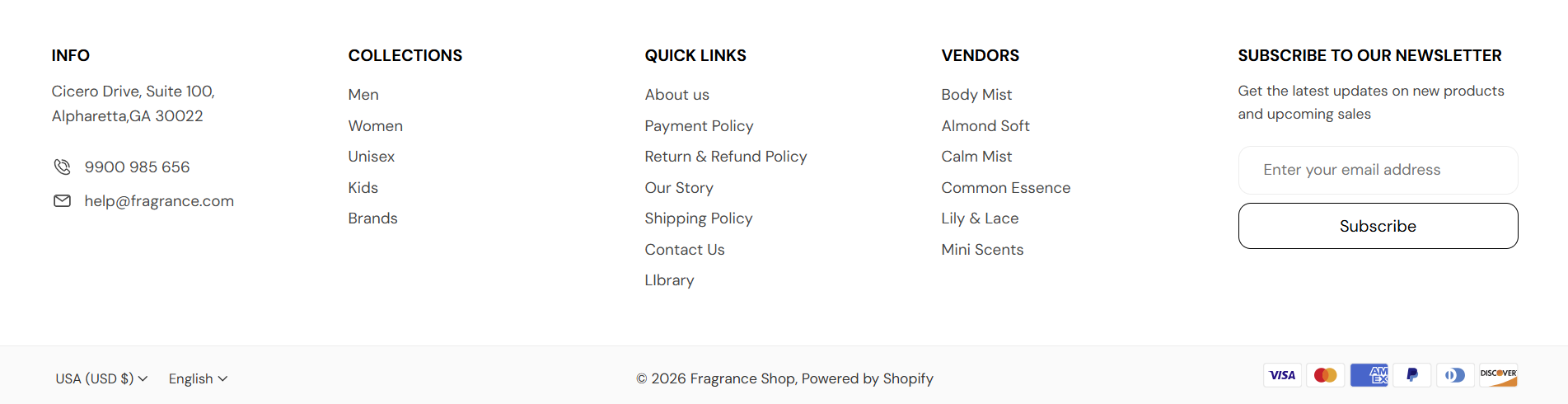
Storefront — full footer

Storefront → Footer

Theme editor — Footer section and blocks

Customize → Footer

Main footer

Main footer colors apply to the top row where store information, menu columns, and the newsletter sit. Choose colors with enough contrast so headings and links stay easy to read.

Theme settings — Footer main footer colors

Footer → Main footer

Background

Background for the main footer area (menu columns, store information, and newsletter). Default color: #FFFFFF.

Usage

  • Usually matches or complements your page background

Where it shows on the storefront

  • Footer top section — all columns

Heading color

Color for column headings (menu titles, store information heading, newsletter title). Default color: #000000.

Usage

  • Match primary text from your color scheme

Where it shows on the storefront

  • Footer column headings

Text color

Color for body text and links in the footer columns. Default color: #484848.

Usage

  • Slightly softer than headings improves hierarchy

Where it shows on the storefront

  • Footer column text and menu links

Border color

Dividers between footer columns or sections. Default color: #EDEDED.

Usage

  • Light gray keeps columns separated without heavy lines

Where it shows on the storefront

  • Footer dividers and borders

Store information

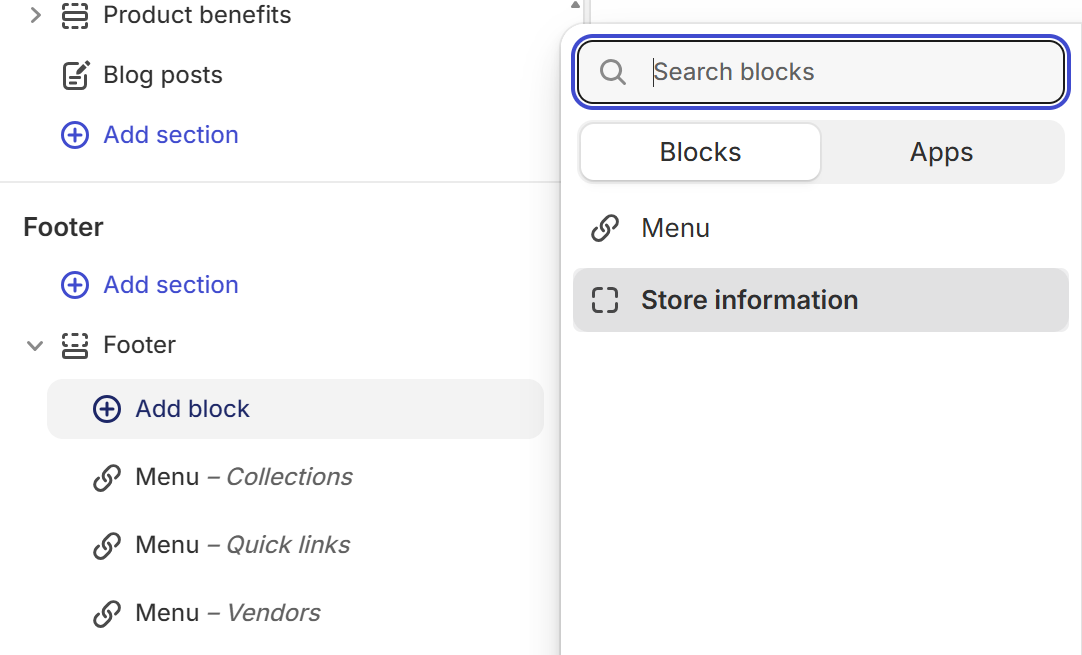
Store information is your address, contact details, optional logo, and social icons in one column. You can add only one block per footer. In the editor, select Footer, click Add block, then choose Store information.

Storefront — footer store information column

Storefront → Store information

Theme editor — Add block — Store information

Footer → Add block → Store information

Theme settings — Store information block

Footer → Store information block

Heading

Title for the store information column.

Usage

  • Example: Info or your store name

Where it shows on the storefront

  • Store information block

Description

Short text or address (rich text).

Usage

  • Address, hours, or a welcome line—for example your street address on two lines

Where it shows on the storefront

  • Store information block

Image

Optional logo or brand mark above contact details.

Usage

  • Recommended width: 160 px (upload 320 px for retina)
  • Match the Image width setting below

Where it shows on the storefront

  • Store information block

Image alt text

Describes the image for accessibility.

Usage

  • Example: your store name

Where it shows on the storefront

  • Store information image

Image width

Display width of the image in the footer. Default: 160 px · You can choose 50 to 300 px

Usage

  • 160–200 px works well for footer logos

Where it shows on the storefront

  • Store information image

Phone number

Phone number shown with a phone icon.

Usage

  • Leave blank if you do not display phone support

Where it shows on the storefront

  • Store information block

Email address

Contact email shown with an envelope icon.

Usage

  • Use a monitored inbox for customer care

Where it shows on the storefront

  • Store information block
Theme settings — Store information social media

Footer → Store information → Social media

Show social media icons

Shows social icons when you want customers to visit your profiles from the footer. Default: Off

When turned on

  • Shows icons for networks you configured under Theme settings → Social media

When turned off

  • Social icons are hidden in this block.

Footer navigation

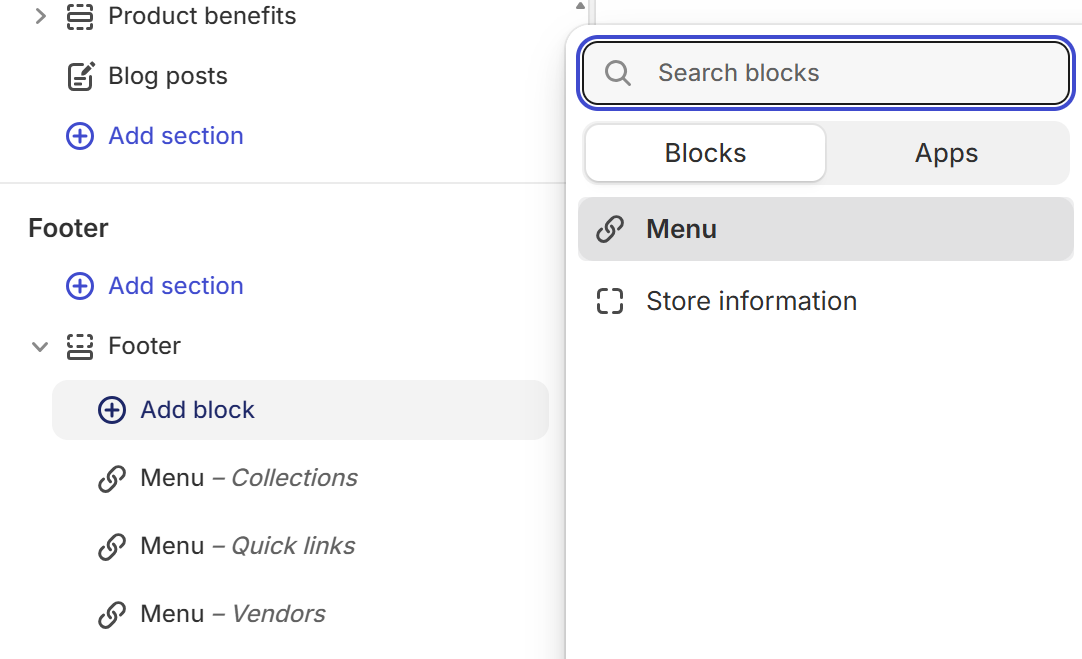
Add one Menu block per link column. Reorder blocks in the section list to change column order (for example, Collections, Quick links, Vendors). In the theme editor, select Footer, click Add block, then choose Menu.
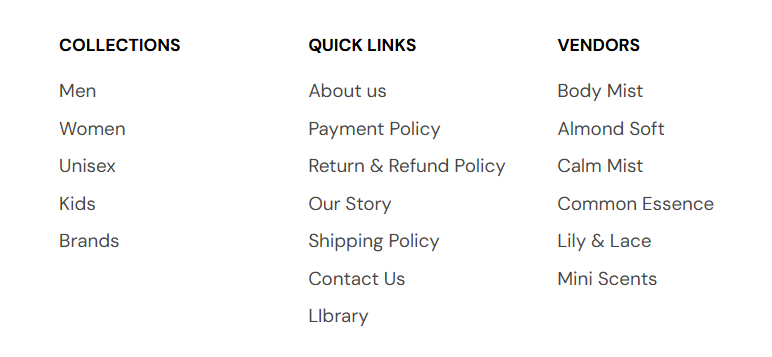
Storefront — footer menu columns

Storefront → Footer menus

Theme editor — Add block — Menu

Footer → Add block → Menu

Theme settings — Menu block

Footer → Menu block

Each Menu block is one column. The heading and menu fields are the same for every Menu block you add.

Heading

Title above this menu column.

Usage

  • Example: Collections, Quick links, or Vendors
  • Shown in uppercase on the storefront

Where it shows on the storefront

  • This Menu block column

Menu

Navigation links for this column.

Usage

  • Create or edit menus under Shopify Admin → Content → Menus
  • Pick a menu from Select menu—often main-menu or a dedicated footer menu
  • Add a separate Menu block for each column you need

Where it shows on the storefront

  • This Menu block column link list

Newsletter

The newsletter column is a section setting—not a block. It appears in the top footer row when enabled.
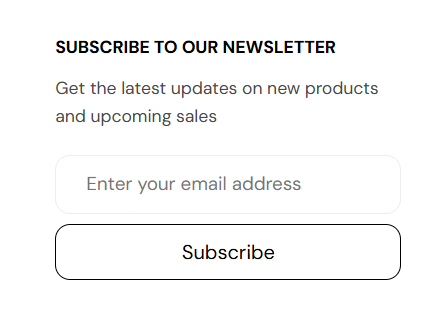
Storefront — footer newsletter signup

Storefront → Newsletter

Theme settings — Footer newsletter

Footer → Newsletter

Show newsletter signup

Email signup area in the footer top section. Default: On

When turned on

  • Shows heading, description, email field, and Subscribe button.

When turned off

  • Newsletter column is hidden.

Heading

Title above the signup form.

Usage

  • Example: Subscribe to our newsletter

Where it shows on the storefront

  • Footer newsletter column

Description

Short line under the heading.

Usage

  • Example: what subscribers receive (new products, sales, scent tips)

Where it shows on the storefront

  • Footer newsletter column

Footer bottom

Colors for the bottom bar where localization, copyright, and payment icons appear. Under Footer bottom in the section settings.

Theme settings — Footer bottom colors

Footer → Footer bottom

Background

Background for the bottom bar (localization, copyright, payment icons). Default color: #FAFAFA.

Usage

  • Often slightly different from the top footer for a clear bottom strip

Where it shows on the storefront

  • Footer bottom bar

Text color

Copyright and secondary text in the bottom bar. Default color: #333333.

Usage

  • Ensure readable contrast on the bottom background

Where it shows on the storefront

  • Footer bottom bar text

Localization

Country/region and language selectors in the footer bottom bar. Under Footer localization in the section settings. The bottom strip also shows Follow on Shop when enabled under Theme settings → Follow on Shop.
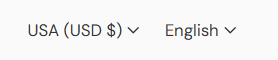
Storefront — footer country and language selectors

Storefront → Localization

Theme settings — Footer localization

Footer → Footer localization

Show country/region selector

Market or currency selector in the footer bottom. Default: On

When turned on

  • Selector appears when multiple markets or countries are set up in Shopify.

When turned off

  • Hidden from the footer bottom.

Show language selector

Language selector in the footer bottom. Default: On

When turned on

  • Selector appears when multiple store languages are enabled.

When turned off

  • Hidden from the footer bottom.

Payment icons

Payment icons help customers recognize supported payment methods before checkout. Keep this enabled when you accept multiple card or wallet types.

Storefront — footer payment icons

Storefront → Payment icons

Theme settings — Footer trust elements

Footer → Footer trust elements

Show payment icons

Shows payment method icons Shopify detects from your store’s enabled payment types. Default: On

When turned on

  • Shows icons for payment types enabled in your Shopify payments settings.

When turned off

  • Payment icons are hidden.

Where it shows on the storefront

  • Footer bottom bar — right side

Section spacing

Theme settings — Footer section spacing

Footer → Section spacing

Section spacing

Adds empty space above and below this section on desktop and mobile.

Usage

  • Top padding (desktop) — Default: 40 px · 0–100 px
  • Bottom padding (desktop) — Default: 40 px · 0–100 px
  • Top padding (mobile) — Default: 40 px · 0–100 px
  • Bottom padding (mobile) — Default: 40 px · 0–100 px
  • When you move the slider, the gap above or below grows or shrinks