Theme Sections

Split image banner

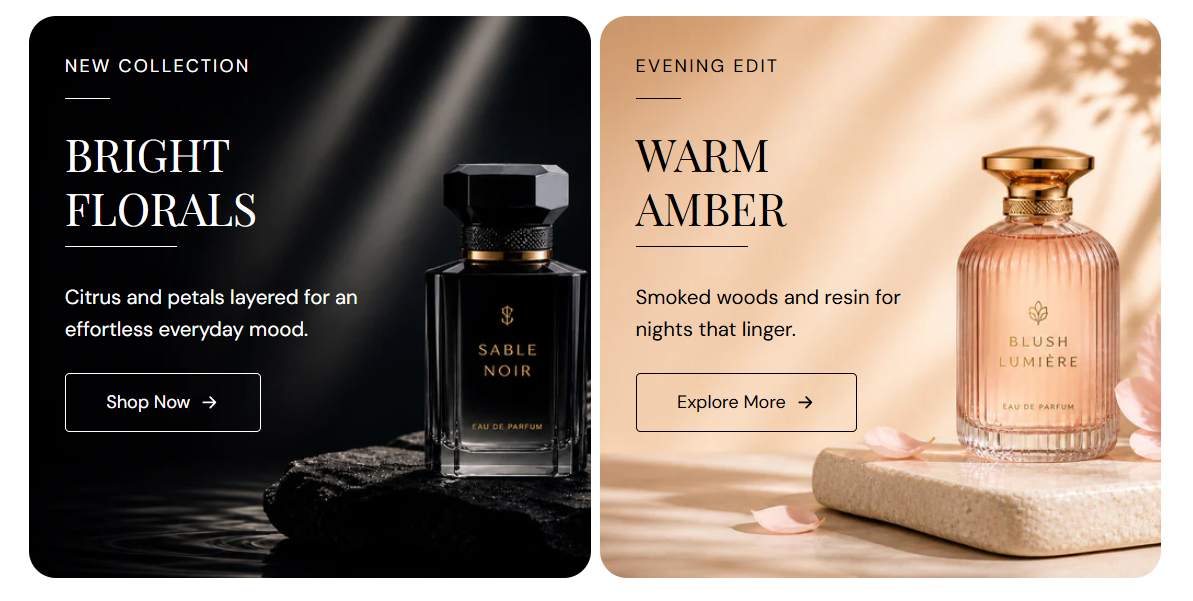
Split image banner shows a row of image tiles with tagline, heading, description, and an outline button on each card. Add up to four banners side by side for collection edits, scent stories, or dual campaigns.

Storefront preview

Split image banner section preview on the Fragrance Shop storefront

Storefront preview

Where to find this section

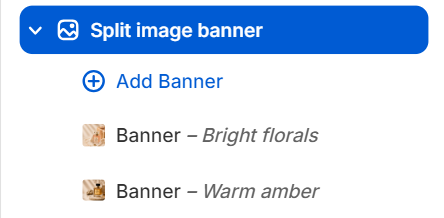
Split image banner section and blocks in the Shopify theme editor

Theme editor section list

Layout and image style

Banners per row

Sets how many banner tiles appear in one row on large screens. Options: 2 columns, 3 columns, or 4 columns. Default: 2 columns.

Usage

  • Use 2 columns for a balanced split layout like the storefront preview.
  • Add enough Banner blocks to fill the row you choose.
  • On smaller screens, tiles stack or wrap based on the theme layout.

Space between banners

Sets the gap between banner tiles. Range: 0–8 px (step 2). Default: 4 px.

Usage

  • Increase the gap for clearer separation between campaigns.
  • Set to 0 px for tiles that sit flush next to each other.

Make section full width

Expands the banner media area to the full page width when turned on. When off, the section stays within the page container. Default: Off.

Usage

  • Turn on for edge-to-edge banners across the screen.
  • Keep off to align with other container-width sections on the page.

Image ratio

Sets the crop shape for all banner images in this section. Default: 1:1 – Square.

Usage

  • Use 1:1 – Square for uniform tiles as in the preview.
  • Use Auto – Original when you do not want forced cropping.

Image corner radius

Rounds the corners of each banner image using presets from Theme settings → Border radius. Default: Extra large radius.

Usage

  • Pick a preset that matches rounded corners used elsewhere on your store.
  • Uses the same corner radius on every banner tile for a consistent look.

Banner block

Image

Uploads the background image for this banner tile. Recommended size: 740 px wide; use 1480 px for retina quality.

Usage

  • Use a clear product or lifestyle shot with space for overlaid text.
  • Each Banner block can use a different image.

Alt text

Describes the image for accessibility and SEO.

Usage

  • Write a short, accurate description of what appears in the photo.
  • Leave blank only when the image is decorative and nearby text already explains it.

Tagline

Small uppercase-style label above the heading (for example New collection).

Usage

  • Keep it short so it fits over the image.
  • Leave blank to hide the tagline on this tile.

Tagline color

Color of the tagline text. Default color: #000000.

Usage

  • Choose a color that contrasts with the image behind the text.
  • Match or complement the heading color for a unified card.

Heading

Main title overlaid on the banner image.

Usage

  • Use a short campaign or collection name (for example Bright florals).
  • Leave blank to hide the heading on this tile.

Heading color

Color of the heading text. Default color: #000000.

Usage

  • Test against the image—light photos may need darker text, and vice versa.

Description

Supporting line under the heading on the image.

Usage

  • Keep to one or two short sentences for readability on the tile.
  • Leave blank to show tagline and heading only.

Description color

Color of the description text. Default color: #000000.

Usage

  • Use a slightly softer tone than the heading if you want subtle hierarchy.

Label

Text on the outline button (for example Shop the edit). Leave blank to hide the button.

Usage

  • Use action wording that matches the link destination.
  • The arrow is included in the button style automatically.

Button accent color

Sets the outline, label, and arrow color for the button. Default color: #000000.

Usage

  • Match the tagline or heading color for a cohesive card.
  • Ensure the outline button stays visible on the image background.

Open in new tab

Opens the button link in a new tab when enabled. Default: Off.

Usage

  • Use for external URLs; keep off for in-store collection and product links.

Section spacing

Section spacing

Adds empty space above and below this section on desktop and mobile.

Usage

  • Top padding (desktop) — Default: 40 px · 0–100 px
  • Bottom padding (desktop) — Default: 40 px · 0–100 px
  • Top padding (mobile) — Default: 40 px · 0–100 px
  • Bottom padding (mobile) — Default: 40 px · 0–100 px
  • When you move the slider, the gap above or below grows or shrinks