Theme Sections

Header

The Header is the main navigation area of your store. It helps customers browse collections, search products, open their account, and reach the cart.

Your logo and logo size come from Theme settings → Store logo. Search and Customer accounts behavior are set under their theme settings groups.

Suggested order: Theme editor overviewHeader appearance & Sticky headerFeatured navigationMega MenuMobile MenuMobile menu localizationSection spacing.

Preview the storefront on desktop and mobile after changing menu structure or colors.

Theme editor overview

Select Header in the left panel under the Header group, or click it in the preview.

On your store

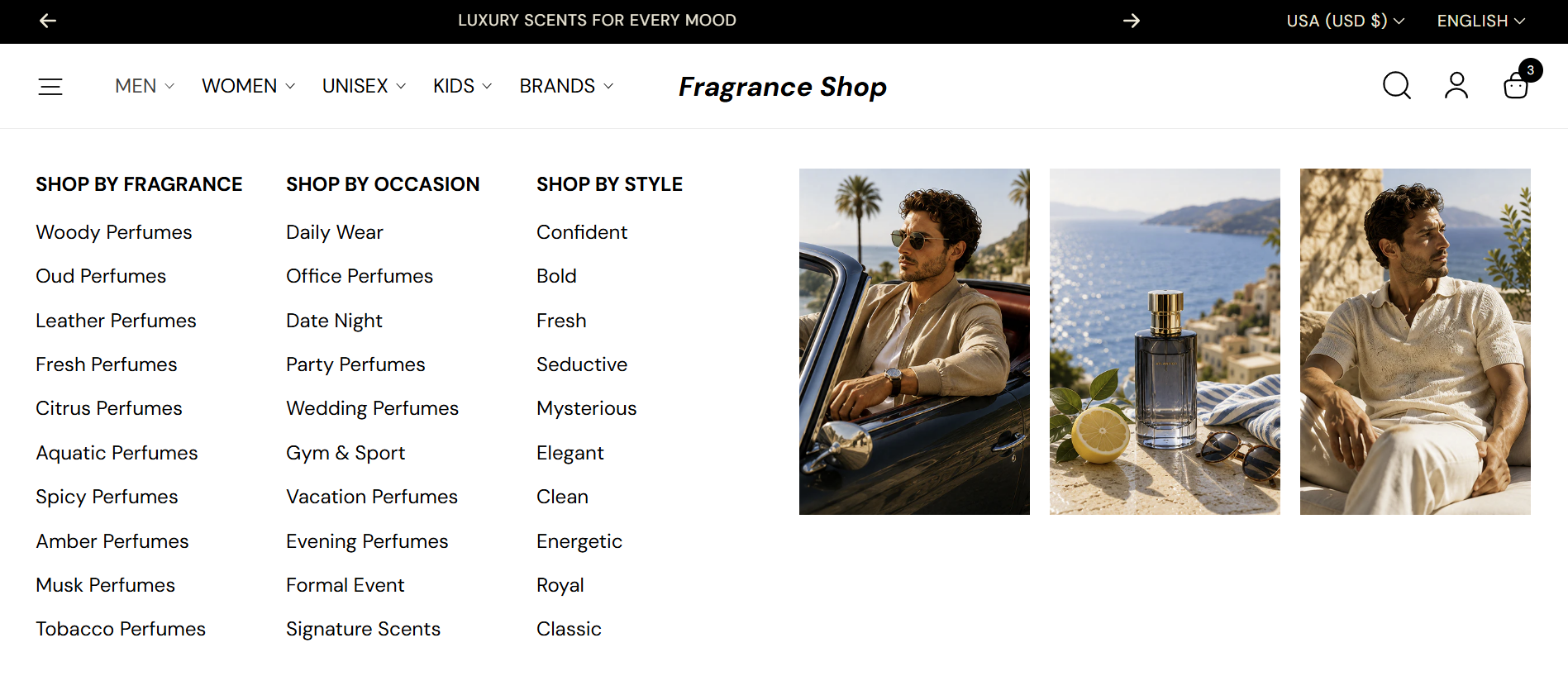
Logo, main navigation, search, account, and cart—plus an optional announcement bar above. Desktop menus, mega menus, and the mobile menu are configured in the sections below.

Storefront — header with announcement bar, navigation, and mega menu

Storefront → Header

Header appearance

Background

Sets the background behind the logo, navigation, and utility icons so the header reads clearly against the page. Default color: #FFFFFF.

Usage

  • Match your default page background or use a subtle contrast

Where it shows on the storefront

  • Main header bar

Icon color

Colors the search, account, and cart icons. Pick a shade that stands out on your header background. Default color: #000000.

Usage

  • Should contrast with the header background

Where it shows on the storefront

  • Header utility icons

Sticky header

Show sticky header

Keeps the header on screen while customers scroll so search, menu, and cart stay within reach. Default: Off

When turned on

  • Header stays fixed at the top of the viewport.

When turned off

  • Header scrolls away with the page.

Mega Menu

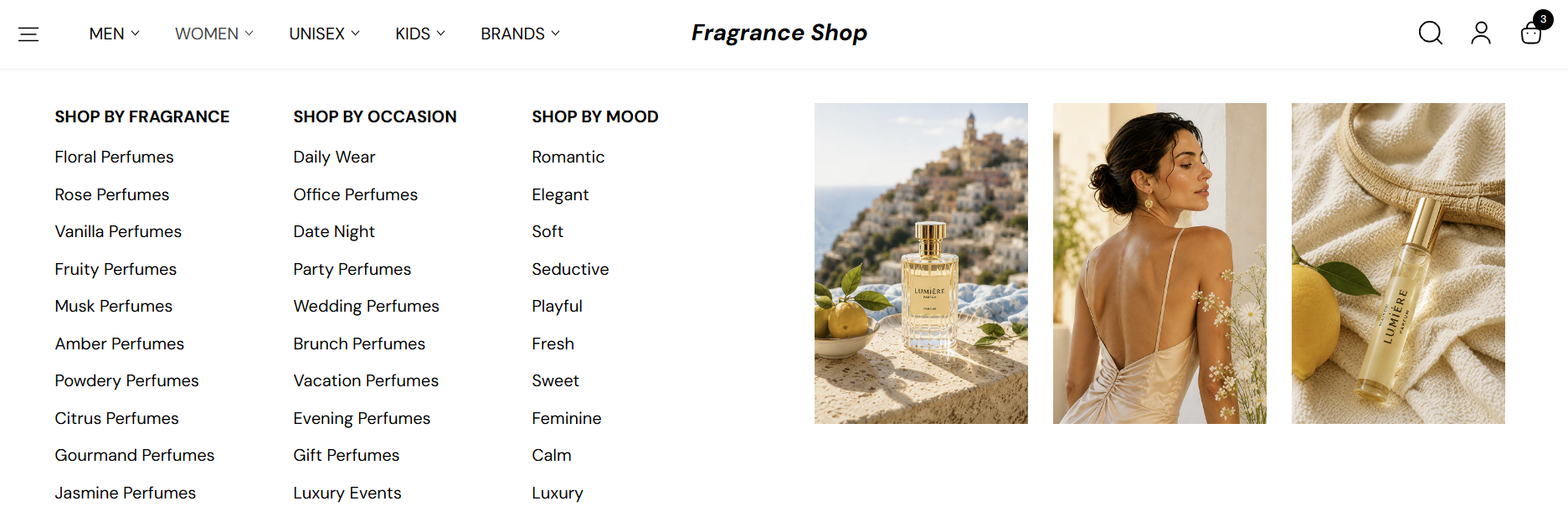
Mega menus add wide panels with link columns and promo images under top-level links. Use them when Navigation style is Mega menu. Add one Mega menu banner block per link you want to customize.

Storefront — mega menu dropdown

Storefront → Mega Menu

Menu connection & layout

Menu item key

Connects this Mega menu banner block to one top-level link from the Menu under Featured navigation.

Usage

  • Enter the same keyword as that link’s navigation label text—for example, Men or Women
  • Match the label exactly—do not add extra spaces before or after
  • One block per top-level link you want a custom mega menu layout for

Where it shows on the storefront

  • Header navigation — mega menu panel for that link

Layout

How many link columns vs. promo images appear in this mega menu panel. Default: 3 links + 3 featured

Usage

  • Links only — submenu links without promo images
  • 5 links + 1 featured — one large banner image
  • 4 links + 2 featured — two banner slots
  • 3 links + 3 featured — three banner slots
  • 2 links + 4 featured — four banner slots
  • 1 link + 5 featured — five banner slots

Where it shows on the storefront

  • Header navigation — mega menu layout for this block

Mega Menu image banner

The editor shows Banner 1 through Banner 5. Every slot uses the same four fields below—documented once here. Fill only the slots your Layout setting needs (for example, three banners for “3 links + 3 featured”).

Image

Promo or category image for a banner slot in the mega menu.

Usage

  • Same field on Banner 1Banner 5
  • Use a consistent aspect ratio across slots for a clean mega menu

Where it shows on the storefront

  • Mega menu dropdown — banner images

Link text

Short label shown with the image (also used for accessibility).

Usage

  • Example: “New arrivals” or “Gift sets”
  • Repeat the same pattern on Banners 2–5 when your layout needs them

Where it shows on the storefront

  • Mega menu — banner label

Mobile menu/ Primary navigation

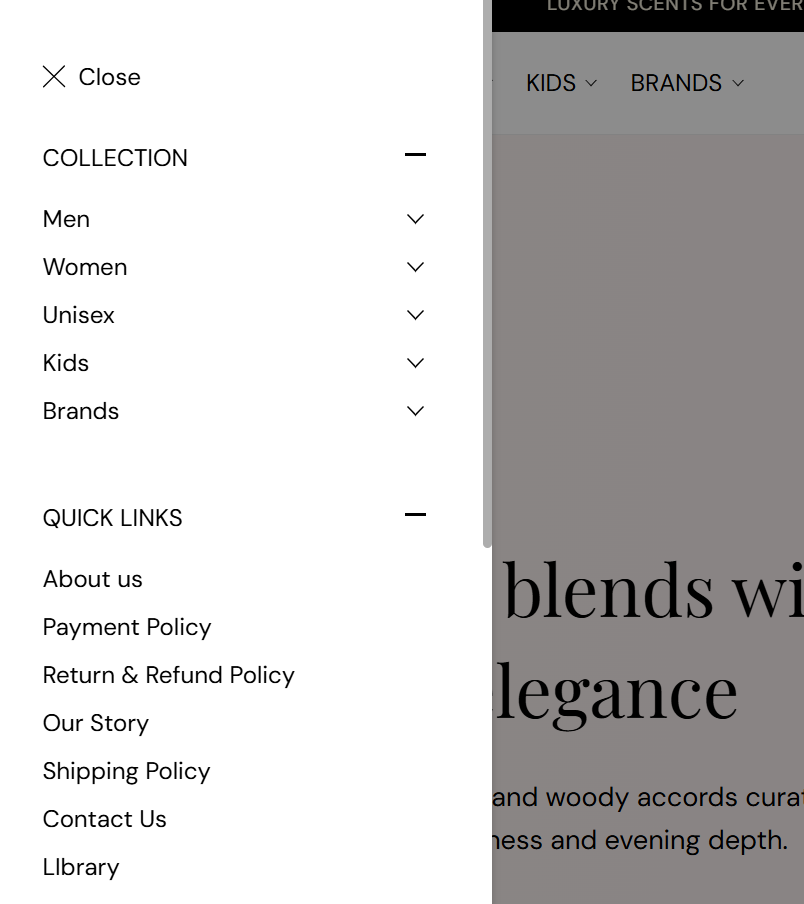
The mobile menu opens from the hamburger icon on desktop and mobile. Use up to three labeled menu groups so shoppers can browse collections, quick links, and other lists without crowding the header bar.

Storefront — mobile menu

Storefront → Mobile menu

Menu groups

The theme editor lists three menu groups. Each group uses the same Title and Menu fields—documented once here.

Title

Heading above that group when shoppers open the mobile menu—for example, Collection, Quick links, or Vendors. Leave blank to hide the heading.

Menu

Which Shopify navigation menu fills that group. Create or edit menus under Shopify Admin → Content → Menus, then choose one from Select menu. A group only appears when a menu is selected.

Usage

  • The first group is often your main catalog (for example, Collection + Main menu)
  • Groups 2 and 3 are optional—use them for quick links, vendors, or secondary menus
  • Leave a group’s menu unset if you do not need that slot

Where it shows on the storefront

  • Mobile menu (hamburger icon) on desktop and mobile

Mobile menu appearance

Mobile menu background

Background color inside the mobile menu panel. Default color: #000000.

Usage

  • Dark backgrounds pair well with light link text—adjust heading and link colors below

Where it shows on the storefront

  • Mobile menu panel

Mobile menu headings

Color for group titles such as Collection or Quick links. Default color: #FFFFFF.

Usage

  • Should contrast clearly with the menu background

Where it shows on the storefront

  • Mobile menu — group headings

Mobile menu localization

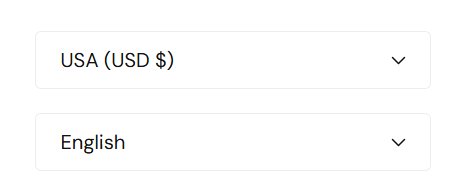
Optional country/region and language selectors at the bottom of the mobile menu. Enable them when you sell in multiple markets or languages.

Storefront — mobile menu country and language selectors

Storefront → Mobile menu localization

Show country/region selector

Lets shoppers change market or currency from the mobile menu. Default: On

When turned on

  • Selector appears when multiple markets or countries are set up in Shopify.

When turned off

  • Hidden from the mobile menu.

Show language selector

Lets shoppers change store language from the mobile menu. Default: On

When turned on

  • Selector appears when multiple languages are enabled.

When turned off

  • Hidden from the mobile menu.

Selector background

Background behind country and language chips in the mobile menu. Default color: #FFFFFF.

Usage

  • Often a light chip on a dark menu background

Where it shows on the storefront

  • Mobile menu — localization area

Selector text

Text color for localization labels and options. Default color: #111111.

Usage

  • Dark text on a light selector background is easiest to read

Where it shows on the storefront

  • Mobile menu — localization labels

Selector border

Border around localization controls. Default color: #EDEDED.

Usage

  • A light border helps the selector stand out on busy backgrounds

Where it shows on the storefront

  • Mobile menu — localization area

Section spacing

Section spacing

Adds empty space above and below this section on desktop and mobile.

Usage

  • Top padding (desktop) — Default: 40 px · 0–100 px
  • Bottom padding (desktop) — Default: 40 px · 0–100 px
  • Top padding (mobile) — Default: 40 px · 0–100 px
  • Bottom padding (mobile) — Default: 40 px · 0–100 px
  • When you move the slider, the gap above or below grows or shrinks