Theme Sections

Image with text

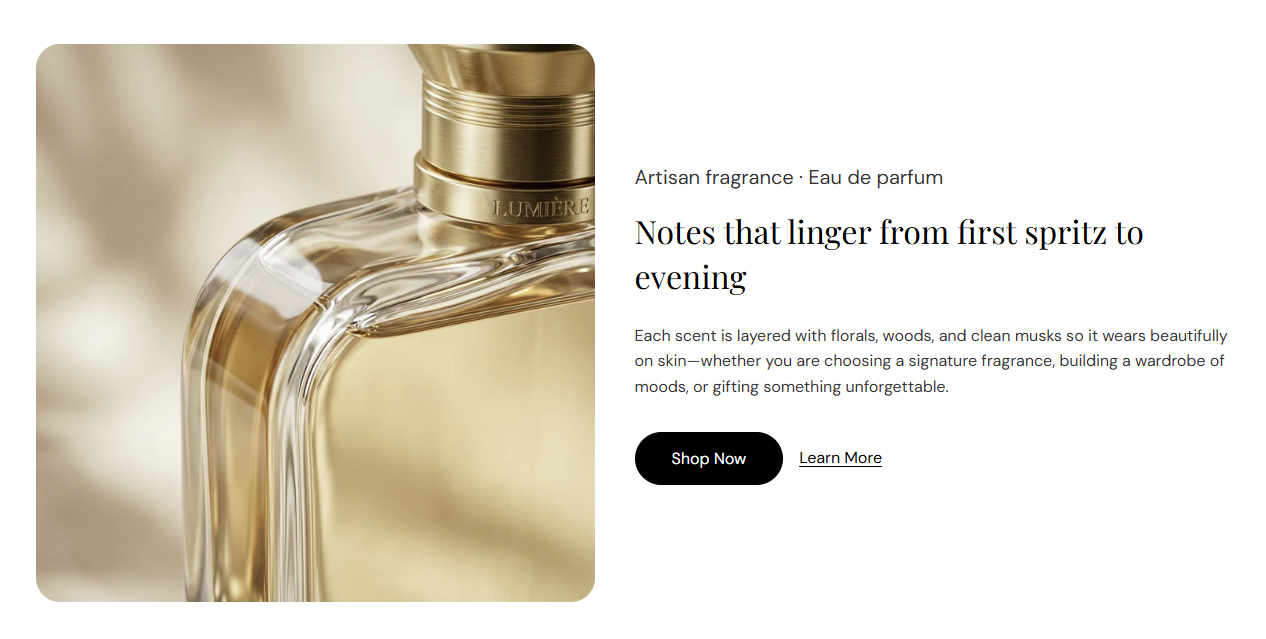
Image with text is a two-column section with a photo on one side and subheading, heading, description, and up to two optional buttons on the other. Choose image position, ratio, and corner radius, or expand the section to full width.
Storefront preview

Image with text section preview on the Fragrance Shop storefront

Storefront preview

Where to find this section

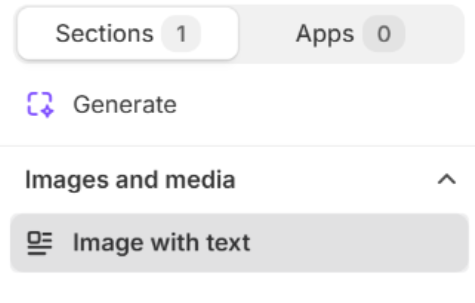
Image with text listed under Images and media in the Shopify section picker

Section picker

Layout

Image position

Which side the image appears on in the two-column layout. Options: Left or Right. Default: Left.

Usage

  • Use Left for the layout shown in the storefront preview.
  • Use Right to alternate with other image-with-text sections on the page.

Full width layout

Expands the section content to the full page width when turned on. When off, the section stays within the page container. Default: Off.

Usage

  • Turn on for edge-to-edge image and text columns.
  • Keep off to align with other container-width sections.

Image

Image

Photo for the media column. Recommended size: 750 px wide; use 1500 px for retina quality.

Usage

  • Use a lifestyle or product shot with clear subject matter.
  • On mobile, the image stacks above the text content.

Alt text

Describes the image for accessibility and SEO. Falls back to the image file alt text or heading when left blank.

Usage

  • Write a short, accurate description of what appears in the photo.

Image ratio

Sets the crop shape of the section image. Default: 1:1 – Square.

Usage

  • Use 1:1 – Square for the balanced layout in the storefront preview.
  • Use Auto – Original when you do not want forced cropping.

Image corner radius

Rounds the image corners using presets from Theme settings → Border radius. Default: Extra large radius.

Usage

  • Pick a preset that matches rounded corners used elsewhere on your store.

Content

Subheading

Small label above the main heading (for example Artisan fragrance · Eau de parfum). Recommended: up to 60 characters. Leave blank to hide the subheading.

Usage

  • Use for product type, collection name, or a short category label.

Heading

Main title beside the image (for example Notes that linger from first spritz to evening). Leave blank to hide the heading.

Usage

  • Keep to one or two lines for readability on mobile.

Heading size

HTML heading level used for the title. Options: H1 through H6. Default: H2.

Usage

  • Use H2 for a standard content section as in the preset.
  • Use H1 only when this is the primary page heading.

Description

Rich-text body copy under the heading. Supports bold, italic, links, and lists.

Usage

  • Write one or two paragraphs about the product, collection, or brand story.
  • Leave blank to show subheading and heading only.

Buttons

Button label

Text on the first call-to-action (for example Shop Now). The button appears only when both label and link are set.

Usage

  • Use action wording that matches where the link goes.
  • Leave the label or link blank to hide this button.

Button style

Visual style for the first button. Options: Primary button, Secondary button, Tertiary button, Arrow button, or Link. Default: Tertiary button.

Usage

  • Use Primary button for the main action you want customers to take.
  • Choose Tertiary button for an outline-style button beside a second link.
  • Choose Arrow button when you want a trailing arrow icon on the label.

Button open in new tab

Opens the first button link in a new browser tab when enabled. Default: Off.

Usage

  • Use for external URLs; keep off for in-store collection and product links.

Section spacing

Section spacing

Adds empty space above and below this section on desktop and mobile.

Usage

  • Top padding (desktop) — Default: 40 px · 0–100 px
  • Bottom padding (desktop) — Default: 40 px · 0–100 px
  • Top padding (mobile) — Default: 40 px · 0–100 px
  • Bottom padding (mobile) — Default: 40 px · 0–100 px
  • When you move the slider, the gap above or below grows or shrinks