Theme Sections

Image banner grid

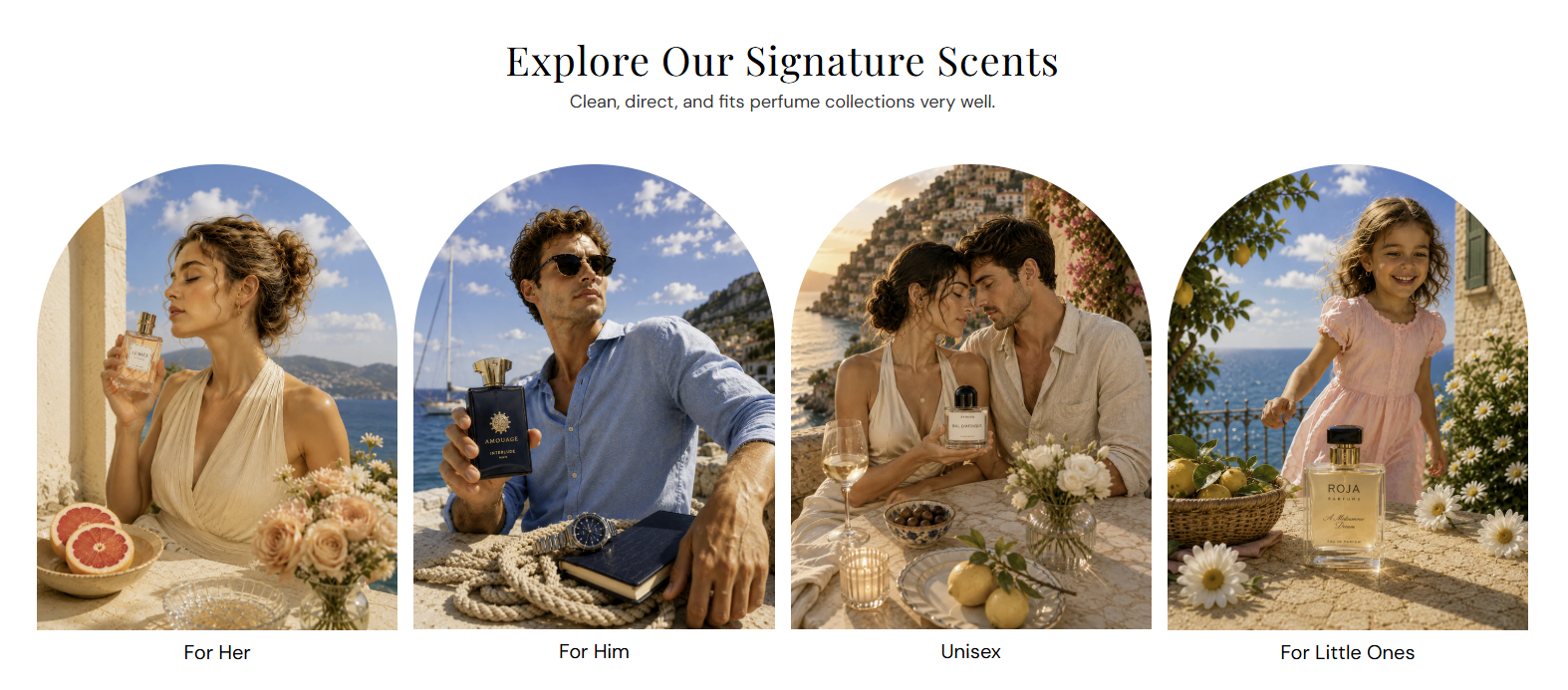
Image banner grid displays a centered heading and up to four linked image banners in a row. Use it to showcase collections, audience segments, or fragrance families with a clean editorial layout.
Storefront preview

Image banner grid section preview on the Fragrance Shop storefront

Storefront preview

Where to find this section

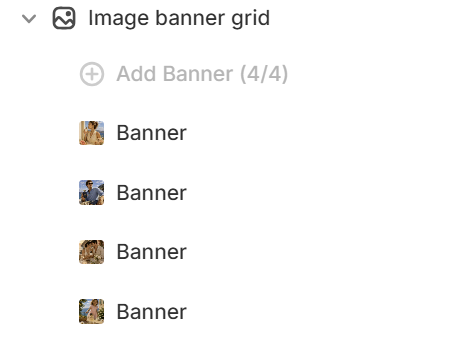
Image banner grid section and blocks in the Shopify theme editor

Theme editor section list

Content

Heading

Sets the main title shown above the banner row.

Usage

  • Keep it short and descriptive so customers understand the group at a glance.
  • Leave blank to hide the heading and show only the banner grid.

Subheading

Adds supporting text below the heading.

Usage

  • Use one short line to explain what the banners represent.
  • Leave blank if the heading alone is enough context.

Banner cards

Image style

Sets the corner style for all banner images in this section. Options: Corner or Half rounded. Default: Half rounded.

Usage

  • Choose Half rounded to show a fixed arch on the top of each image only—the bottom stays straight, as in the storefront preview.
  • Choose Corner for rectangular banners with straight corners and no top arch.
  • This applies to every banner in the row for a consistent look.

Image ratio

Sets the aspect ratio for all banner images. Auto shows the full image; fixed ratios may crop to fit.

Usage

  • Use Auto – Original when you want each photo to show without forced cropping.
  • Pick a fixed ratio (for example 4:5 or 1:1) when you need uniform tile heights across the row.
  • Preview on mobile—tiles stack two per row on smaller screens.

Banner block

Image

Uploads the image for each banner tile. Recommended size: 370 px wide; use 740 px for retina quality.

Usage

  • Add one Banner block per column (up to 4).
  • Use lifestyle or product shots that read clearly at the tile size.

Alt text

Describes the image for accessibility and SEO.

Usage

  • Write a short, accurate description of what appears in the image.
  • If left blank, the caption text may be used as fallback alt text when available.

Text

Sets the label shown below each banner image (for example, For Her or Bestsellers).

Usage

  • Keep labels short so they stay centered and readable under the image.
  • Leave blank to show image only with no caption.

Open in new tab

Opens the banner link in a new tab when enabled. Default: Off.

Usage

  • Use for external URLs; keep off for in-store collection and product links.
  • Set per block when each banner needs different link behavior.

Section spacing

Section spacing

Adds empty space above and below this section on desktop and mobile.

Usage

  • Top padding (desktop) — Default: 40 px · 0–100 px
  • Bottom padding (desktop) — Default: 40 px · 0–100 px
  • Top padding (mobile) — Default: 40 px · 0–100 px
  • Bottom padding (mobile) — Default: 40 px · 0–100 px
  • When you move the slider, the gap above or below grows or shrinks