
FFragrance ShopDocs
Welcome & Theme Introduction
Theme Installation
Install from Shopify Theme StoreInstall from ZIP File
Overview
Brand identity
Store logoStore name fallbackBrowser icon
Border radius
Colors and schemes
Page colorsText colorsDivider colorsPrimary buttonSecondary buttonTertiary buttonArrow buttonForm fieldsDropdownsProduct option buttonsSelected Product option buttons
Typography
FontsBody textHeading textSection headingsPage headings
Layout and spacing
Buttons
Primary and secondaryTertiary buttonArrow button
Form fields
Text inputsDropdowns
Search
Predictive search
Customer accounts
Account navigation
Social media
Profile linksIcon color
Product cards
BadgesProduct imageProduct details
Product compare
Compare feature and limitCompare tableCustom comparison fields
Breadcrumbs
Visibility by page type
Cart page
Follow on Shop
Follow on Shop
Custom CSS
Announcement Bar
LocalizationAnnouncement banner
Header
Featured navigationMega MenuMobile MenuMobile menu localization
Footer
Main footerStore informationFooter navigationNewsletterFooter bottomLocalizationPayment icons
Home PageCollections List PageCollection PageProduct PageBlog PageArticle PageCart PageSearch PageStandard PageContact PagePassword Page404 PageGift Card Page
Banner with benefitsFeatured banner gridImage banner gridProduct bannerPromotional bannerSplit image banner
Hero slideshowImage slideshow
Collapsible image contentFull-width mediaImage galleryImage with textProduct showcase
AnnouncementCall to action cardsScrolling text
Editorial product featureFeatured collectionFeatured productFiltered product listHand-picked productsProduct descriptionProduct videosRecommended products
Collection list
Benefits barProduct benefitsReviews and logosTestimonialsTrust indicators
FAQRich text
Contact formNewsletter
Blog posts
Apps blockCustom Liquid
Version HistoryChangelog
Support PolicyContact Support
FAQ
Docs/Theme Sections/Image gallery
Theme Sections

Image gallery

Image gallery displays a fixed collage of five clickable images—two large tiles on top and three smaller tiles below. Configure each tile’s photo, link, and layout options for campaign grids or editorial storytelling.

Storefront preview

Image gallery section preview on the Fragrance Shop storefront

Storefront preview

Where to find this section

Where to find this

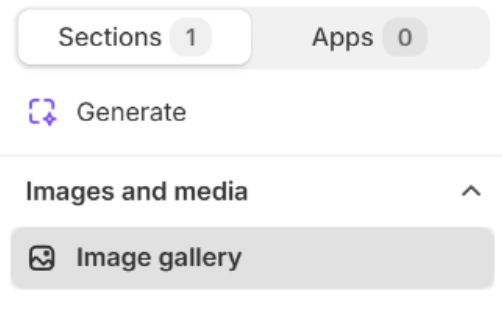
Themes → Customize → Add section → Image gallery

Find it under the Images and media group in the section picker.

Image gallery in the Add section list under Images and media

Theme editor section picker

Layout

Image gallery layout settings in the Fragrance Shop Shopify theme editor

Theme editor settings

Full width layout

Switches the gallery between full page width and a contained layout inside the page container. Default: Off (container width).

Usage

  • Turn on for edge-to-edge collage across the screen.
  • Keep off to align with other container-width sections, as in the storefront preview.

Image spacing and side padding

Sets both the gap between images and horizontal padding inside the gallery. Range: 0–24 px (step 2). Default: 8 px.

Usage

  • Increase for more space between the five tiles and along the sides.
  • Set to 0 px for tiles that sit flush together.

Image corner radius

Rounds the corners of every gallery image using presets from Theme settings → Border radius. Default: Extra large radius.

Usage

  • Pick a preset that matches rounded corners used elsewhere on your store.
  • Applies to all five tiles for a consistent collage look.

Gallery images

Image gallery Primary banner settings in the Fragrance Shop Shopify theme editor

Theme editor settings (Primary banner)

Five fixed banners

This section always uses exactly five image slots in a fixed grid: Primary banner and Secondary banner on the top row, plus three Supporting banner tiles on the bottom row. Each group has the same fields: image, alt text, link, and open in new tab.

Usage

  • Upload all five images for the full collage layout shown in the preview.
  • Top-row banners use larger recommended sizes; bottom-row banners use smaller sizes (see below).
  • Any copy shown on the storefront must be part of the image artwork—this section does not add separate heading or description fields.

Primary banner

Top-left large tile. Image recommended size: 740 px wide (use 1480 px for retina). Optional Image alt text, Link, and Open in new tab (default off).

Usage

  • Use for your lead campaign or hero collection.
  • Add a link to send shoppers to a collection or landing page when the tile is clicked.

Secondary banner

Top-right large tile. Same fields as Primary banner: image (740 px / 1480 px retina), alt text, link, and open in new tab.

Usage

  • Pair with the primary banner for two-up storytelling on the top row.

Supporting banners (3, 4, and 5)

Three bottom-row tiles, each labeled Supporting banner in the editor. Same fields as the top row: image, alt text, link, and open in new tab. Recommended image size: 500 px wide (use 1000 px for retina).

Usage

  • Fill all three for the three-column bottom row in the preview.
  • Use smaller artwork sized for the shorter bottom tiles.
  • Set links per tile for distinct destinations (gifts, collections, product lines).

Image alt text

Describes each banner image for accessibility and SEO. Available on all five banner groups.

Usage

  • Describe what appears in the photo if the image conveys information.
  • Leave blank to fall back to the file’s alt text when set in the media library.

Link

Makes the entire banner tile clickable. Paste a URL or search for a page, collection, or product on each of the five banners.

Usage

  • Without a link, the image is not clickable.
  • Use a different link on each banner to route traffic to separate destinations.

Open in new tab

Opens that banner’s link in a new browser tab when enabled. Default: Off on all five banners.

Usage

  • Use for external URLs; keep off for in-store collection and product links.

Section spacing

Image gallery section spacing settings in the Fragrance Shop Shopify theme editor

Theme editor settings

Section spacing

Adds empty space above and below this section on desktop and mobile.

Usage

  • Top padding (desktop) — Default: 40 px · 0–100 px
  • Bottom padding (desktop) — Default: 40 px · 0–100 px
  • Top padding (mobile) — Default: 40 px · 0–100 px
  • Bottom padding (mobile) — Default: 40 px · 0–100 px
  • When you move the slider, the gap above or below grows or shrinks