Theme Sections

Product banner

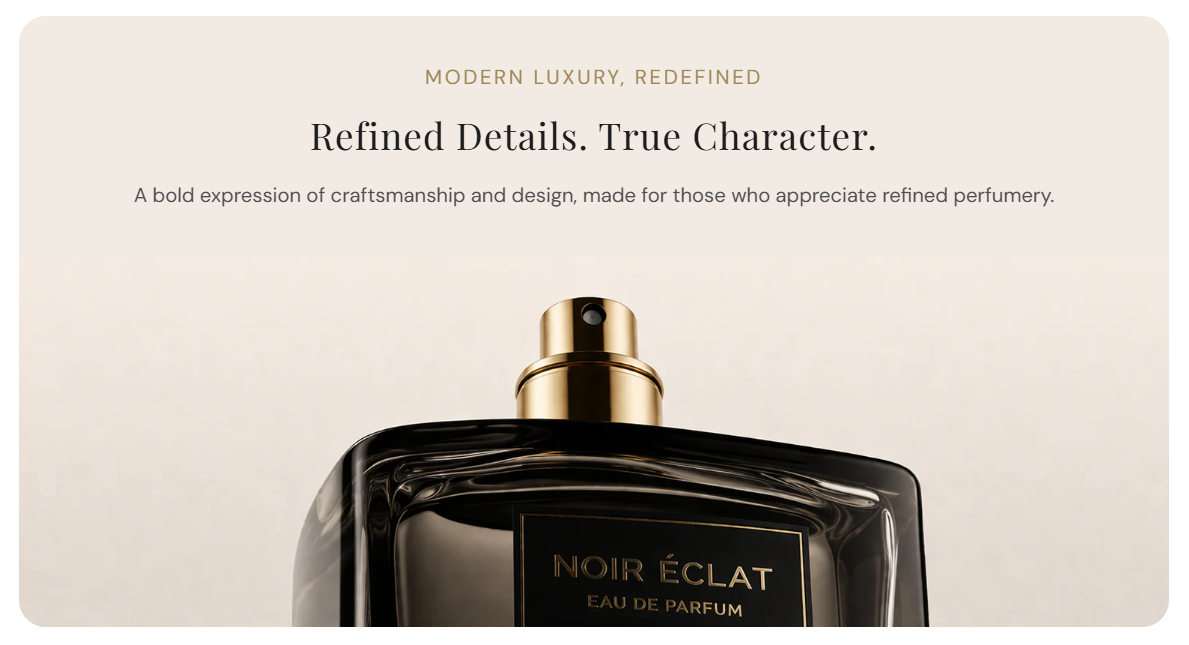
Product banner combines centered or aligned copy with a large hero image below. Use it on product pages or campaign areas to highlight craftsmanship, scent story, or a featured bottle with a premium editorial layout.

Storefront preview

Product banner section preview on the Fragrance Shop storefront

Storefront preview

Where to find this section

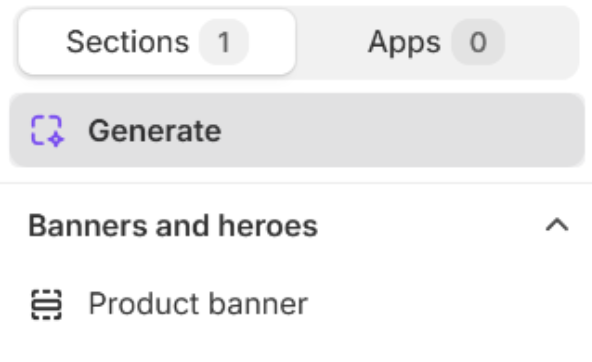
Product banner in the Shopify theme editor Add section list

Theme editor section list

Layout and spacing

Full width

Choose whether the section spans the full screen width or stays inside the page container. Default: On.

Usage

  • Turn on for an edge-to-edge banner that uses the full viewport width.
  • Turn off to keep the section within the same width as other container-based sections.
  • When full width is on, section corner radius is forced to 0 for a flush edge-to-edge look.

Background color

Sets the background color for the entire section (behind the text area and around the image). Default color: #F5F4F1.

Usage

  • Match your page background for a seamless block, or use contrast to frame the hero image.
  • Check text colors against this background for readable eyebrow, heading, and description copy.

Corner radius

Rounds the section corners using presets from Theme settings → Border radius. Default: Extra large radius. Only applies when Full width is off.

Usage

  • Pick a preset that matches rounded corners used elsewhere on your store.
  • Turn off full width if you want visible rounded corners on the section container.

Content

Eyebrow text

Small label line shown above the heading (often uppercase). Leave blank to hide.

Usage

  • Use for a short campaign line or category cue (for example Modern luxury, redefined).
  • Keep it brief so it does not compete with the main heading.

Heading

Main title for the banner text block.

Usage

  • Write a clear, premium headline that matches the product or story below the image.
  • Leave blank to hide the heading and show eyebrow or description only.

Description

Rich text body copy under the heading. Supports basic formatting from the editor.

Usage

  • Keep to one or two short sentences for easy scanning.
  • Use bold or links sparingly so the block stays editorial and calm.

Text alignment

Aligns the eyebrow, heading, and description as a group. Options: Left, Center, Right. Default: Center.

Usage

  • Use Center for a classic hero look, as in the storefront preview.
  • Use Left or Right when pairing with asymmetric layouts elsewhere on the page.

Image

Image

Uploads the large hero image shown below the text. Recommended size: 2000 px wide; use 4000 px for retina quality.

Usage

  • Use a high-resolution product or lifestyle shot with clear focal point.
  • Leave empty only if your theme shows a placeholder until you add an image.

Image alt text

Describes the image for accessibility and SEO.

Usage

  • Describe the product or scene shown in the photo.
  • If blank, the theme may fall back to the heading or eyebrow text when available.

Banner ratio

Sets the aspect ratio of the image area. Auto – Original keeps the image’s natural proportions; fixed ratios may crop. Default: Auto.

Usage

  • Use Auto when you do not want forced cropping.
  • Pick a cinematic ratio (for example 16:9 or 21:9) for a wide product hero band.

Colors

Eyebrow text color

Color of the eyebrow line. Default color: #9E8758.

Usage

  • Use a subtle accent that complements your brand palette.
  • Ensure contrast against the section background color.

Heading color

Color of the main heading. Default color: #1D1D1D.

Usage

  • Use your primary text color for strong readability on light backgrounds.
  • Preview with your chosen background color before publishing.

Description color

Color of the description body text. Default color: #4F4F4F.

Usage

  • Use a softer shade than the heading for clear hierarchy.
  • Check legibility on both desktop and mobile previews.

Section spacing

Section spacing

Adds empty space above and below this section on desktop and mobile.

Usage

  • Top padding (desktop) — Default: 40 px · 0–100 px
  • Bottom padding (desktop) — Default: 40 px · 0–100 px
  • Top padding (mobile) — Default: 40 px · 0–100 px
  • Bottom padding (mobile) — Default: 40 px · 0–100 px
  • When you move the slider, the gap above or below grows or shrinks