Theme Sections

Banner with benefits

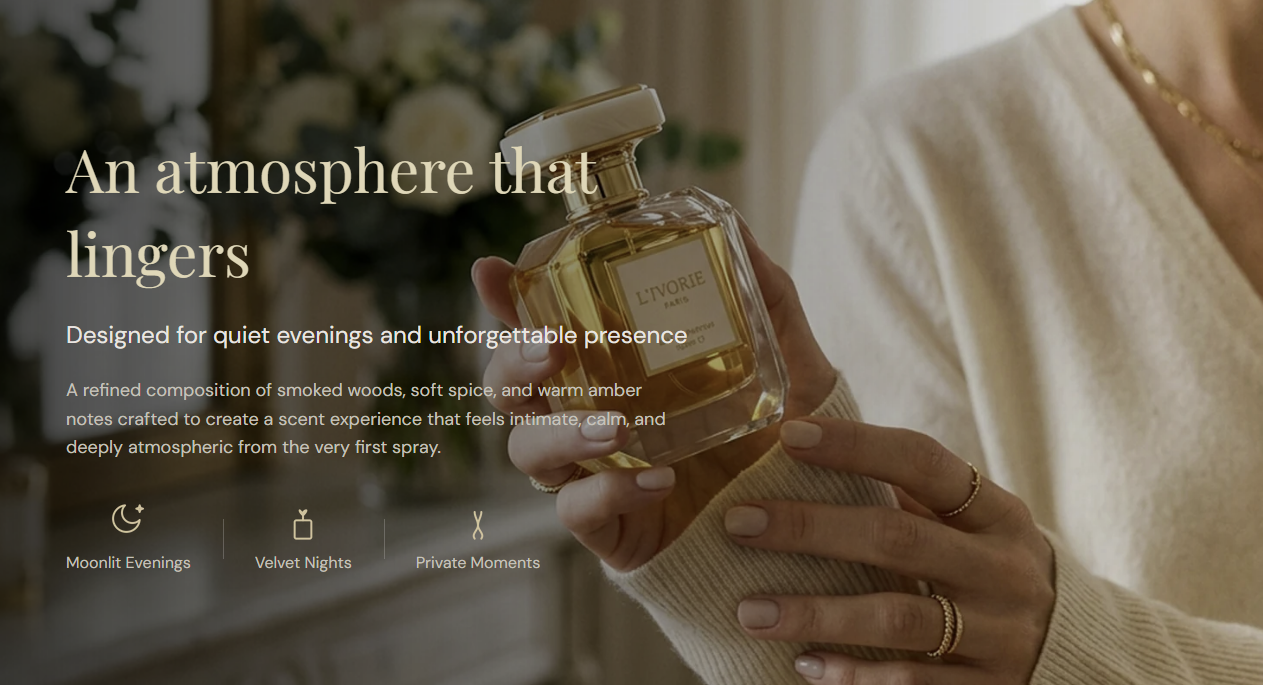
Banner with benefits creates a cinematic image banner with headline text and supporting benefit points. Use it to present a campaign message, product mood, or brand story with clear copy and visual impact. This section is especially useful when you want one focused hero area with quick value highlights.

Storefront preview

Banner with benefits section preview on the Fragrance Shop storefront

Storefront preview

Where to find this section

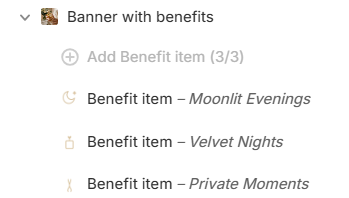
Where to find the Banner with benefits section in the Shopify theme editor

Theme editor section list

Layout and spacing

Full width

Shows section content without the container wrapper and forces section corner radius to 0. Default: Off.

Usage

  • Turn on for edge-to-edge campaign banners that span the full page width.
  • Turn off to keep the banner inside the page container with rounded corners from Section corner radius.

Section corner radius

Rounds the section container corners using presets from Theme settings → Border radius.

Usage

  • Use a larger radius for a softer beauty-style presentation.
  • Use a smaller radius for a cleaner, sharper layout style.

Content settings

Heading

Sets the main title text for the banner.

Usage

  • Keep it short so customers understand it in one quick glance.
  • Use action-oriented wording that matches your campaign goal.

Subheading

Adds a supporting line under the heading.

Usage

  • Use it to explain the promise behind the heading in one line.
  • Avoid repeating the heading text; add complementary context.

Description

Adds body copy below the heading and subheading.

Usage

  • Keep to 1-2 short sentences for easier readability.
  • Use this space for key scent story, offer details, or value message.

Image settings

Image

Uploads the main background image for this section. Recommended width: 1500 px (use 3000 px for very sharp retina screens).

Usage

  • Use high-resolution imagery that matches your campaign message.
  • Choose images with enough contrast for text readability with your overlay setting.

Banner ratio

Sets the visible height and aspect ratio of the banner area.

Usage

  • Choose cinematic ratios when you want a stronger hero-style look.
  • Use Auto when you want height to follow the uploaded image naturally.
  • Keep one ratio style across pages for visual consistency.

Overlay opacity

Adds or reduces dark overlay strength over the image. Default: 45% · Range: 0–90% (step 5).

Usage

  • Increase opacity when text is hard to read on bright images.
  • Lower opacity when the image looks too dark or details are lost.

Colors and caption width

Heading color

Sets the heading text color.

Usage

  • Pick the highest contrast color in this text group.
  • Test color with your chosen image and overlay settings together.

Subheading color

Sets the subheading text color.

Usage

  • Keep it close to heading color for a unified text block.
  • Use a slightly softer shade if you need visual hierarchy.

Description color

Sets the body copy color used in the description.

Usage

  • Use a readable but softer tone than heading color.
  • Check readability on both desktop and tablet previews.

Benefit text color

Sets the color for USP benefit labels.

Usage

  • Use clear contrast so benefit labels are easy to scan quickly.
  • Align with icon style and the rest of the caption text palette.

Description width desktop

Limits how wide the caption text can grow on desktop screens.

Usage

  • Use narrower width for short premium copy blocks.
  • Use wider width when your heading and description need more space.
  • Avoid overly wide lines to keep text comfortably readable.

Description width tablet

Limits how wide the caption text can grow on tablet layouts.

Usage

  • Adjust until tablet text wraps naturally without awkward breaks.
  • Keep tablet width balanced with desktop width for consistency.
  • Mobile uses full width automatically, so this setting is tablet-focused.

Benefit item block

Icon image

Uploads an icon for each benefit item block. Recommended size: 40 px (use 80 px for very sharp retina screens).

Usage

  • Use simple icon shapes that remain clear at small sizes.
  • Keep icon style consistent across all benefit items.

Icon alt text

Adds accessibility text for each icon image.

Usage

  • Write a short description only when the icon meaning is important.
  • Keep alt text concise and natural for screen-reader users.

Benefit text

Sets the short label shown next to each benefit icon.

Usage

  • Keep each label short so all items stay clean in one row.
  • Use benefit phrases like scent notes, quality promises, or campaign cues.
  • The section supports up to 3 benefit item blocks.

Section spacing

Section spacing

Adds empty space above and below this section on desktop and mobile.

Usage

  • Top padding (desktop) — Default: 40 px · 0–100 px
  • Bottom padding (desktop) — Default: 40 px · 0–100 px
  • Top padding (mobile) — Default: 40 px · 0–100 px
  • Bottom padding (mobile) — Default: 40 px · 0–100 px
  • When you move the slider, the gap above or below grows or shrinks