Theme Sections

Blog posts

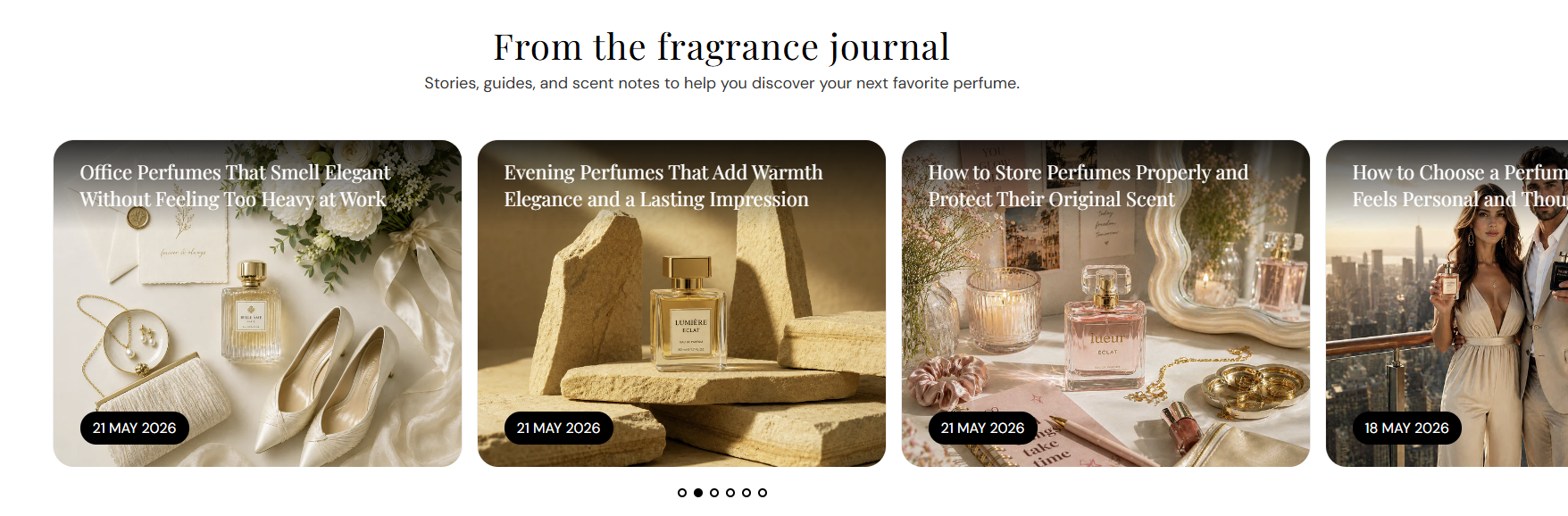
Shows a heading and a horizontal slider of recent articles from blogs you create in Shopify admin. Choose how many posts to show in this section—use it on the home page, blog areas, or any template where you want editorial content with optional date badges and slideshow controls.
Storefront preview

Blog posts section preview on the Fragrance Shop storefront

Storefront preview

Where to find this section

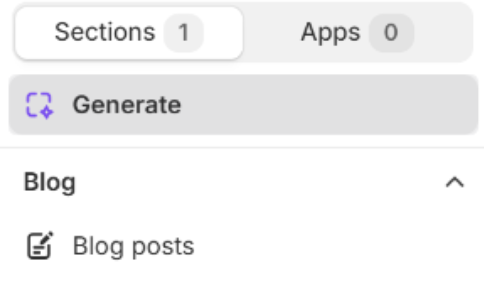
Blog posts section in the Shopify theme editor sidebar under Blog

Theme editor section list

Section content

Heading

Sets the main title shown above the blog slider.

Usage

  • Keep it short so customers understand the section at a glance.
  • Leave blank to hide the heading and show only the post slider.

Subheading

Adds supporting text below the heading.

Usage

  • Use one short line to describe what readers will find in the posts.
  • Leave blank if the heading alone is enough context.

Posts

Blog

Chooses which blog’s articles appear in this section. Only blogs you have created in your store are listed (for example News).

Usage

  • Select the blog that matches the content you want to promote on this page.
  • Create or manage blogs in Online Store → Blog posts if none appear in the list.
  • Posts load from the newest articles in that blog, up to the limit you set below.

Image ratio

Sets the aspect ratio for each post’s featured image. Auto shows the full image; fixed ratios may crop. Default: 5:4 – Soft.

Usage

  • Use Auto – Original when you want each image to show without forced cropping.
  • Pick a fixed ratio when you need uniform card heights in the slider row.
  • Preview on mobile—the slider shows fewer cards per view on smaller screens.

Posts display

Radius preset

Rounds the corners of each post image using your global border radius presets from Theme settings → Border radius. Default: Extra large radius.

Usage

  • Pick a preset that matches rounded corners used elsewhere on your store.
  • Values are shared sitewide—changing a preset in Theme settings updates every section that uses it.

Posts to show

Sets how many articles load in the slider. Range: 6–15. Default: 6.

Usage

  • Choose a count that matches how many posts you publish regularly.
  • Slideshow controls only apply when more than one post is available.

Blog heading color

Sets the color of each article title on the post card. Default color: #FFFFFF.

Usage

  • Pick a color with strong contrast against your featured images.
  • Check all visible cards in the slider—brightness varies per image.

Date

Show blog date

Shows a date badge on each post card when turned on. Default: On.

Usage

  • Turn on when publish dates help customers spot fresh content.
  • Turn off for a cleaner image-only card layout.

Background color

Sets the date badge background. Default color: #000000.

Usage

  • Match or contrast with the photo behind the badge so the date stays readable.
  • Dark badges often work well on light or busy lifestyle images.

Text color

Sets the date badge text color. Default color: #FFFFFF.

Usage

  • Adjust per store imagery—choose text that contrasts clearly with the badge background.
  • Preview each card in the slider after changing colors.

Slideshow

Show pagination dots

Shows dots under the slider when more than one post is visible. Default: On.

Usage

  • Turn on so customers can see how many slides exist and jump between groups.
  • Dots are hidden when only one post is available.

Autoplay

Automatically advances slides when turned on and multiple posts exist. Default: On.

Usage

  • Turn on for a passive browsing experience on the home page.
  • Turn off if you prefer customers to swipe or use dots only.

Autoplay speed

Seconds each slide stays visible when autoplay is on. Range: 2–10 s (step 2). Default: 6 s.

Usage

  • Use a slower speed when titles are long so customers can read them.
  • Only applies when Autoplay is on and more than one post is shown.

Dot color

Sets the color of pagination dots. Default color: #000000.

Usage

  • Pick a dot color that stays visible against the section background.
  • Preview with pagination turned on in the theme editor.

Section spacing

Section spacing

Adds empty space above and below this section on desktop and mobile.

Usage

  • Top padding (desktop) — Default: 40 px · 0–100 px
  • Bottom padding (desktop) — Default: 40 px · 0–100 px
  • Top padding (mobile) — Default: 40 px · 0–100 px
  • Bottom padding (mobile) — Default: 40 px · 0–100 px
  • When you move the slider, the gap above or below grows or shrinks