Install from Shopify Theme Store
Use this method when Fragrance Shop is available in the Shopify Theme Store. You can try the theme, preview it with your store content, customize it, and purchase it before publishing.
View Theme Store StepsThere are two ways to add Fragrance Shop to your Shopify store. Install it from the Shopify Theme Store, or upload the theme manually using a ZIP file. Follow the matching method below, then preview and customize before you publish.
Use this method when Fragrance Shop is available in the Shopify Theme Store. You can try the theme, preview it with your store content, customize it, and purchase it before publishing.
View Theme Store StepsUse this method when you already have the Fragrance Shop theme as a ZIP file. Uploading the ZIP file adds the theme to your Shopify admin as a draft theme.
View ZIP File StepsUse this method when you are adding Fragrance Shop directly from the Shopify Theme Store. Open the Fragrance Shop theme listing on the Shopify Theme Store, or follow the steps below from your Shopify admin.
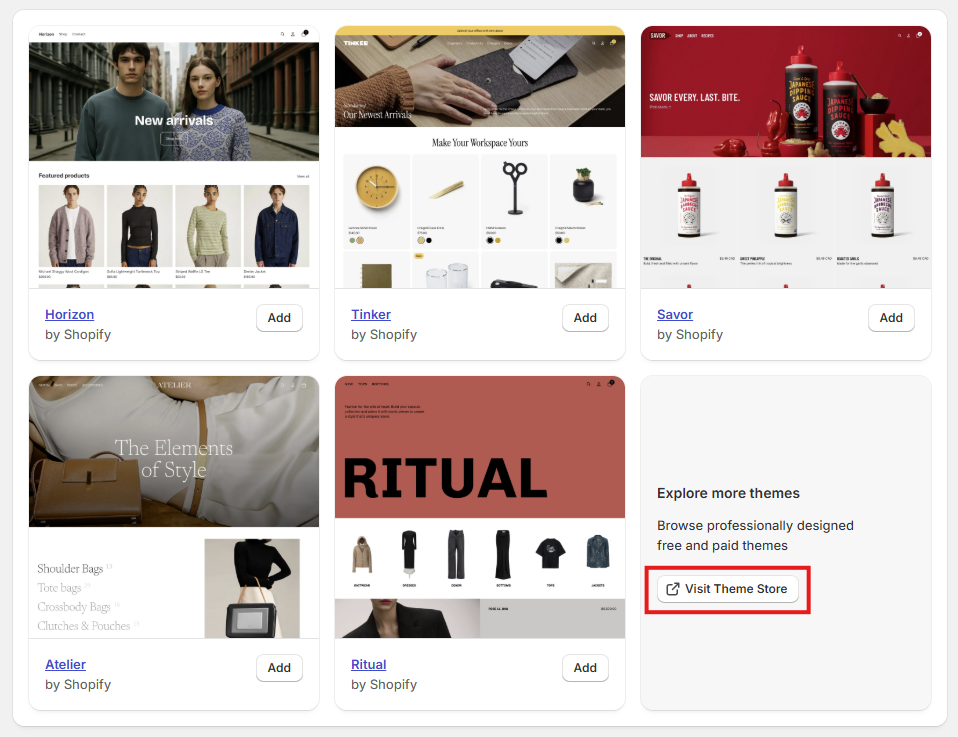
Shopify Admin → Online Store → Themes → Add Theme → Visit Theme Store
Open Shopify Admin
Go to Shopify Admin and open Online Store → Themes.
Visit the Shopify Theme Store
Click Add Theme, then choose Visit Theme Store.
Find Fragrance Shop
Search for the Fragrance Shop theme and open the theme details page.
Try the theme
Click Try Theme to add the theme to your store as a draft theme.
Preview the theme
Go back to Online Store → Themes. Open the theme actions menu and select Preview.
Customize the theme
Open the theme editor and review your logo, colors, typography, home page, product page, collection page, cart, and mobile layout.
Purchase before publishing
If this is a paid theme, purchase the theme before publishing it to your live store.
Publish when ready
Publish the theme only after reviewing the main storefront pages and mobile layout.
Shopify lets you try paid themes before buying. You can preview and customize the theme during the trial, but you must purchase it before publishing it to your live store.
Use this method when you already have the Fragrance Shop theme package as a ZIP file.
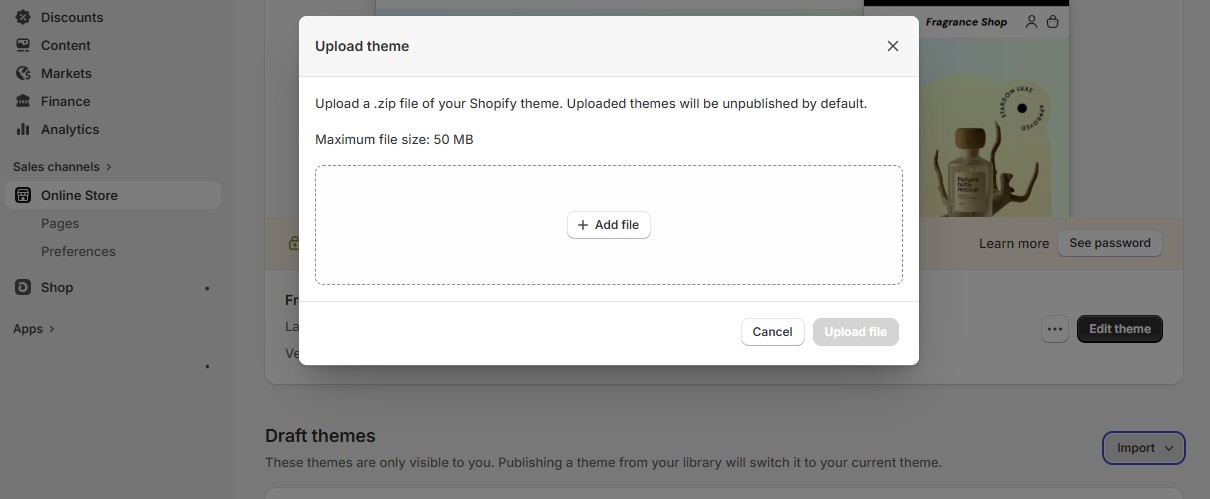
Shopify Admin → Online Store → Themes → Add Theme → Upload ZIP File
Prepare the ZIP file
Make sure you have the original Fragrance Shop theme ZIP file.
Open Shopify Admin
Go to Shopify Admin and open Online Store → Themes.
Upload the ZIP file
Click Add Theme, then choose Upload ZIP File.
Select the file
Choose the theme ZIP file from your computer and upload it.
Wait for Shopify to finish
After the upload is complete, the theme appears in your theme library as a draft theme.
Preview the theme
Open the theme actions menu and select Preview.
Customize the theme
Review your theme settings, home page sections, product page, collection page, cart, search, and mobile layout.
Publish after testing
Publish the theme only when the preview looks ready.
For the latest Shopify instructions, review Shopify’s official guides:
Shopify’s steps may change over time. For the latest instructions, review Shopify’s official documentation.